Online Management for companies and consulting firms
Contact
- 24-hour emergency care 900 61 00 61
- Foreign +34 91 919 61 61
- Monday to Sunday from 8 a.m. to 10 p.m. 900 61 00 61
- Other ways to contact



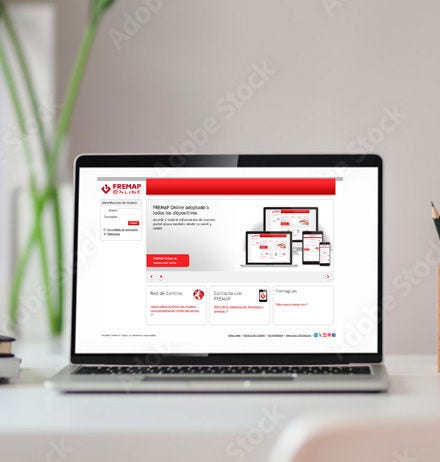
Manage online securely and centrally your contribution account codes, delegated payment, worker contingencies, Delt@ reports, medical kits, reports and communications with FREMAP.
Available 24/7 and accessible from any device with an internet connection, following FREMAP's security and confidentiality standards.
How to register in FREMAP Online?
1
Apply to register as a company or consulting firm
2
Complete your details and receive your temporary password
3
Verification by code and creation of your own password
4
Signing the complete activation and access agreement
With FREMAP Online you can:
Companies: Control and traceability of your relationship with FREMAP
- View and manage CACs (Contribution Account Codes) and work centres.
- Consult and view the contingencies and processes of workers (Work-related accidents and ITCC) and export them to Excel.
- Schedule automatic reception of the contingency file for absenteeism processes.
- Download Delt@ files with and without leave and complete the procedure with Ayuda Delt@.
- Request and track medical kits by work centre.
- Access health reports, accident rates and other key reports for personnel management.
- Manage the expected delegated payment and differences communicated to the General Treasury of the Social Security.
- Schedule custom alerts to receive real-time communications.
- Manage access for other company users, permissions and visibility of CACs.
- Access registrations and download Webinars from the Virtual Classroom of FREMAP Benefits.

RED Authorised Parties / Consulting firms: A digital office for all your companies and self-employed workers
- View and manage all the CACs and self-employed workers of your RED authorisations
- View, export to Excel and schedule files for contingencies, processes and absenteeism (work-related accidents and ITCC).
- Download Delt@ files with and without leave, and complete the procedure with Ayuda Delt@.
- Request and track medical kits by work centre.
- Access health reports, accident rates and other key reports for personnel management.
- Manage expected delegated payment and differences communicated to the General Treasury of the Social Security.
- Schedule custom alerts to receive real-time communications.
- Manage access for consulting firm users, permissions and visibility of CACs.
- Update contact information and manage association documents/policies.
- Access registrations and download Webinars from the Virtual Classroom of FREMAP Benefits.
Frequently asked questions (FAQ)
- I forgot my password, how do I reset it?
From “I forgot my password”, enter your National ID No. and the email address you have registered with FREMAP Online. You will receive a temporary password by email. Then you will need to validate it with a code (SMS or email) and change it for a final one.
- I am not receiving the verification code on my mobile or email, what should I do?
- Check that your mobile number or email address is correctly registered in “Change my details”.
- Check your SPAM folder if you are expecting the code by email.
- If the code expires, log in again.
- If you cannot log in to check the data, contact your account advisor.
- How do I add new companies or CACs to my user account?
From Management > Manage CCCs > Add policy, entering the CIF of the new company. To view your data, you will need to sign an access agreement for each of the added companies. Contact your advisor.
- How do I manage the visibility of CACs in order to stop seeing some centres?
From Management > Manage CCCs, you can select which companies or CCCs you want to see or stop seeing. This will affect alerts and any visible company data on FREMAP Online.
- I am not receiving alerts for reports or assistance, what could be the reason?
This can be due to three main reasons:
- Verify that you have correctly configured the alert in the FREMAP Online menu > Alerts > Configure alerts.
- The employee has not signed the data transfer consent.
- Has been treated outside a FREMAP centre.
- Where can I find the information that arrives through the FREMAP Online mailbox?
From the FREMAP Online menu > Alerts > Inbox, where you will find all communications and can download documents.
- How to download Delt@ reports with and without leave. Check out our Manual for managing Delt@ reports
- Go to Companies > Delt@ > Pending.
- Filter, select and click “Generate Delt@ file”.
- For reports with leave, you must complete them with Delt@ Help before submitting them.
- Those without leave can only be downloaded when they belong to closed months.
- How to request and download health, accident or REM reports.
From Companies > Reports, select the type of report (REM, IT RD, health or accident rate), request it and download it when it appears in the mailbox.
- Error entering Tax ID No./CAC or Tax ID No. of the consulting firm.
This may be because the company is not associated with FREMAP. In the case of consulting firms, the TAX ID No. of the company name of the RED authorisation number must be entered and it must have self-employed workers and/or companies associated with FREMAP. If the information is correct, contact your advisor to validate the registration.
- No reception of email with temporary password
Verify that your registered email is correct and check the junk mail / SPAM folder in your mailbox. If it continues, contact your advisor.
- Doubts about who should sign the access agreement (user, owner, legal representative).
- The contract must be signed by the user and by the owner or legal representative of the company or consulting firm.
- The owner or legal representative of the company or consulting firm must identify themselves and certify their status as a representative in order to authorise the user. We recommend signing with a personal digital certificate or a representative's digital certificate, if applicable.